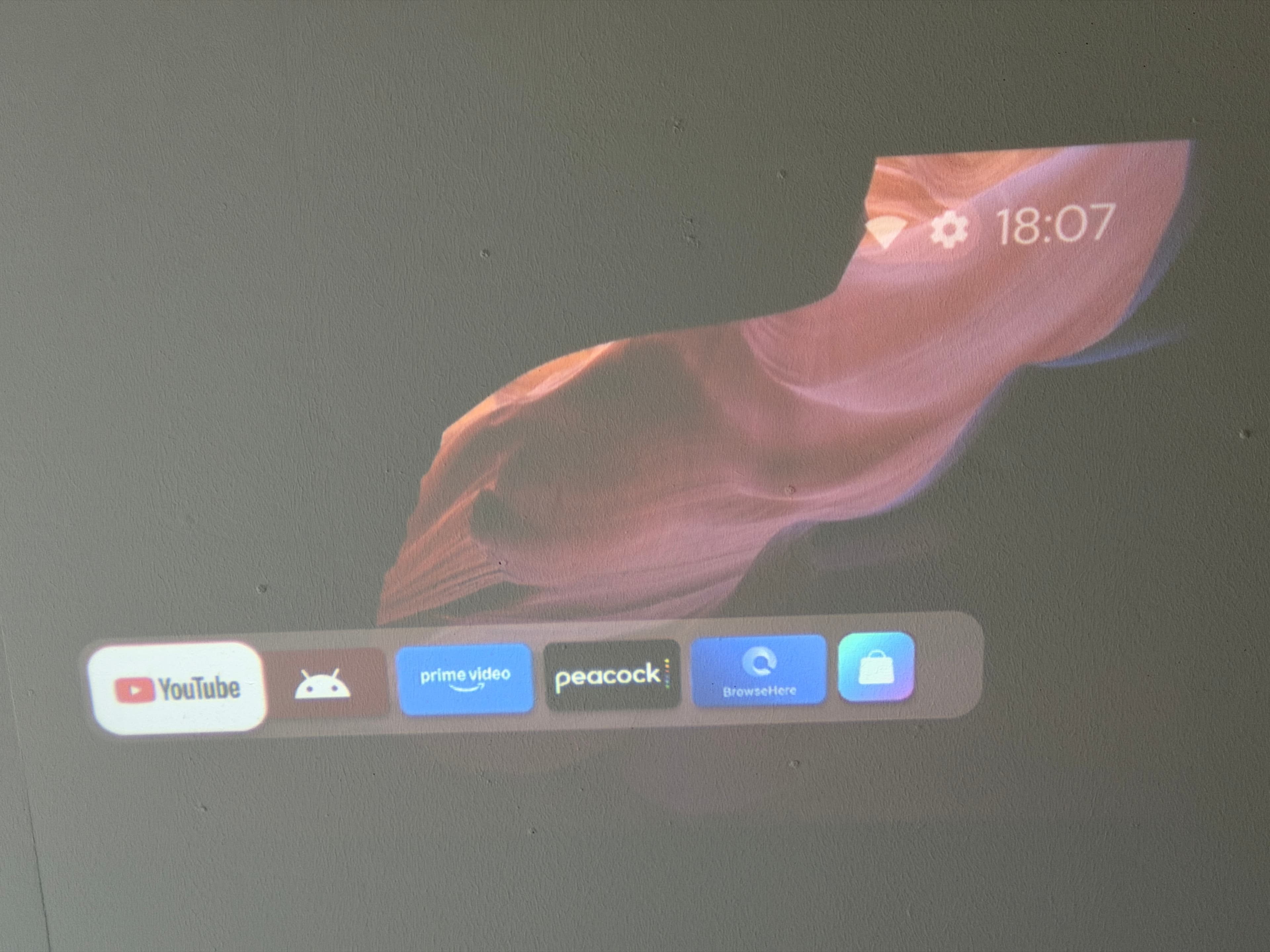
Make the HP MC400 yours.
My projector hid the Android settings I needed. Here's how I reached them, paired ADB over Wi-Fi, and made Projectivy my Home launcher.
Choose a settings screen to open
Get to the hidden settings
Start from the HP home screen. The shortcut app only asks Android to open existing settings screens; it cannot enable debugging for you, and a button may fail if your firmware does not expose that screen.
- 01
Open App Center
From the projector's original home screen, open App Center.
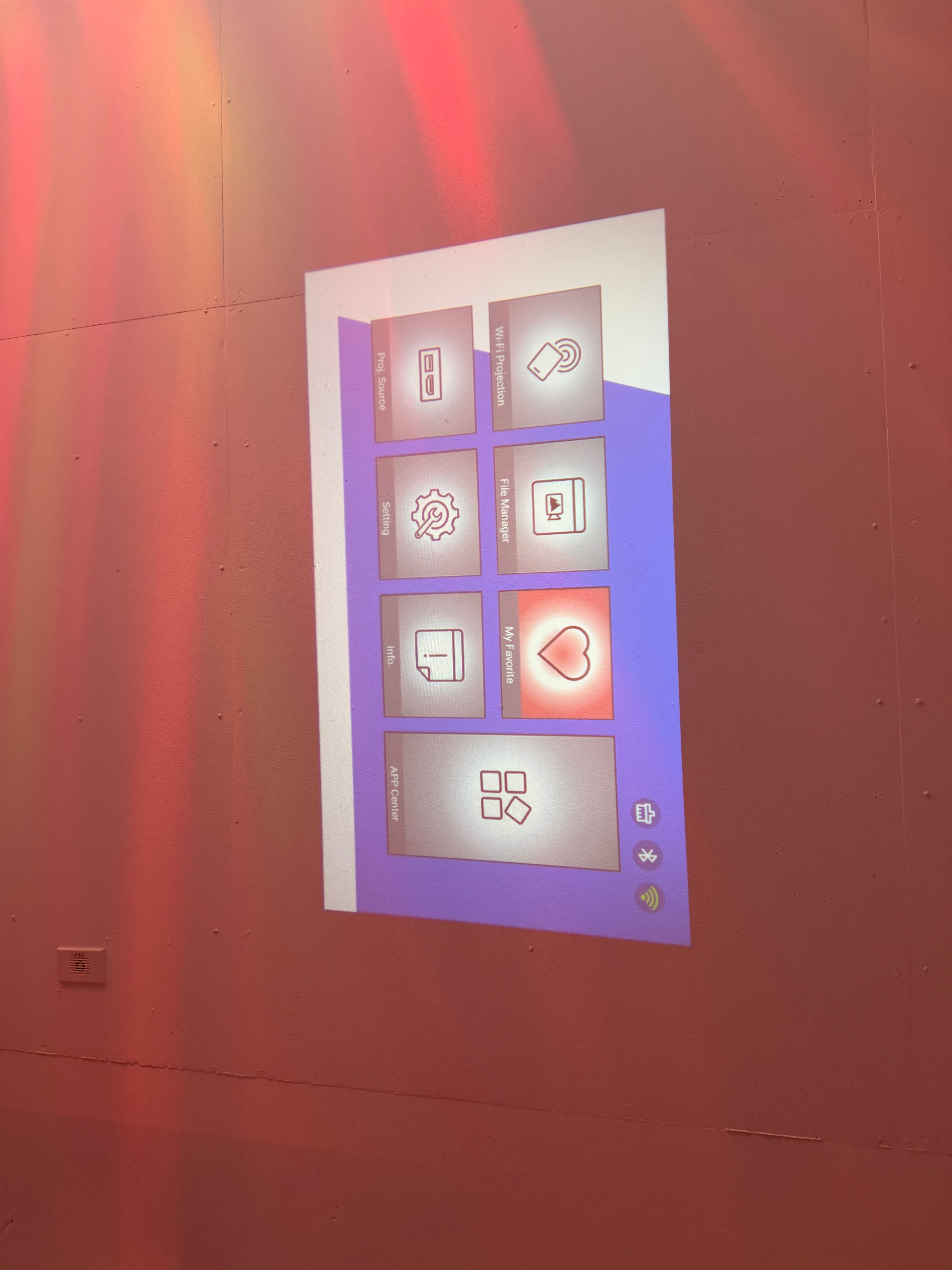
The App Center tile on my original HP home screen. - 02
Install a browser
On my MC400, the browser in App Center was called Browse Here. Install and open it.
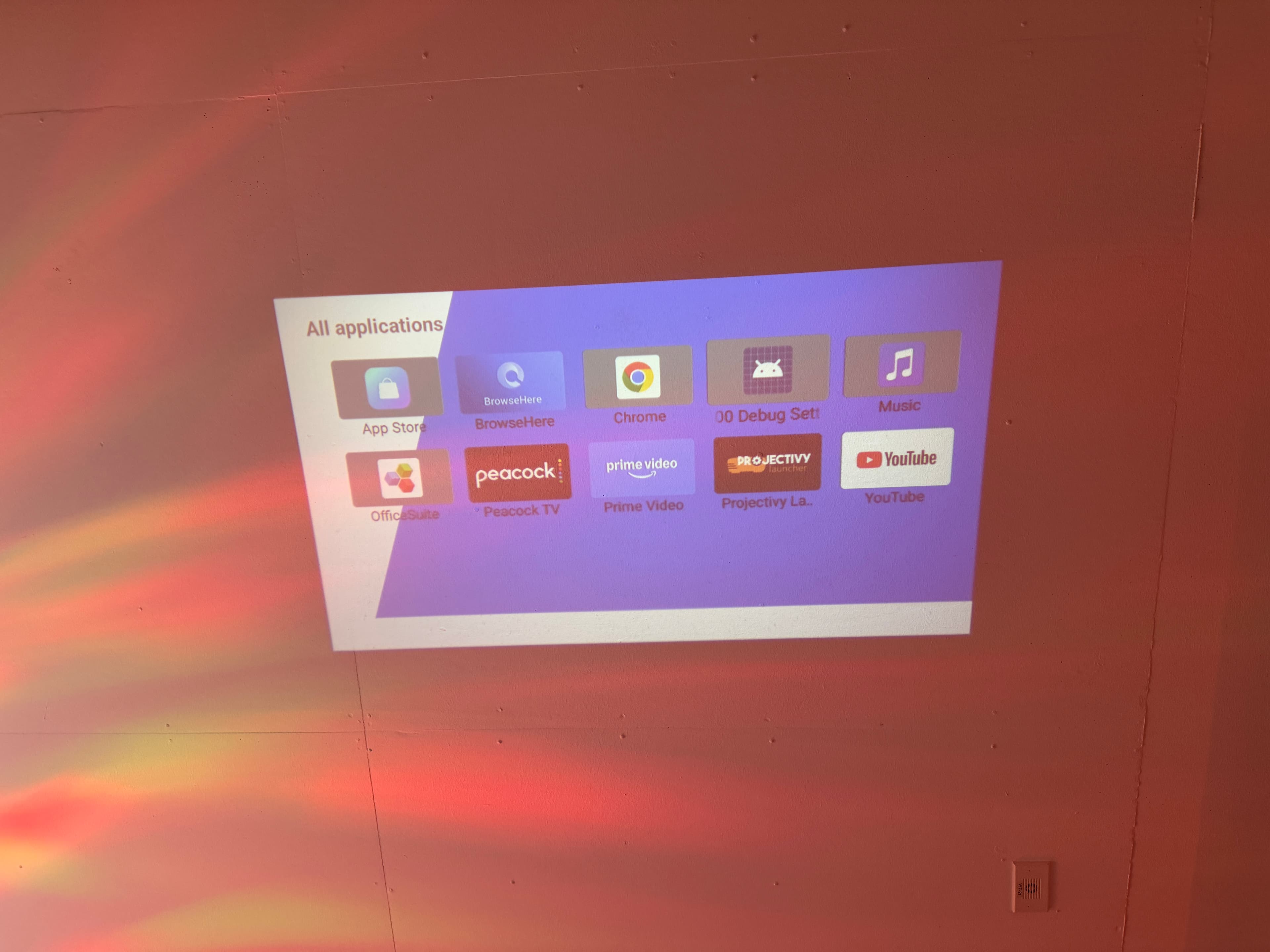
BrowseHere in the MC400 apps list. - 03
Download on the projector
Type steelecodes.com/mc400-apk-download directly into the browser. That address downloads the APK without needing to select a button. Open the downloaded file. If Android prompts you, allow that browser to install apps from this source.
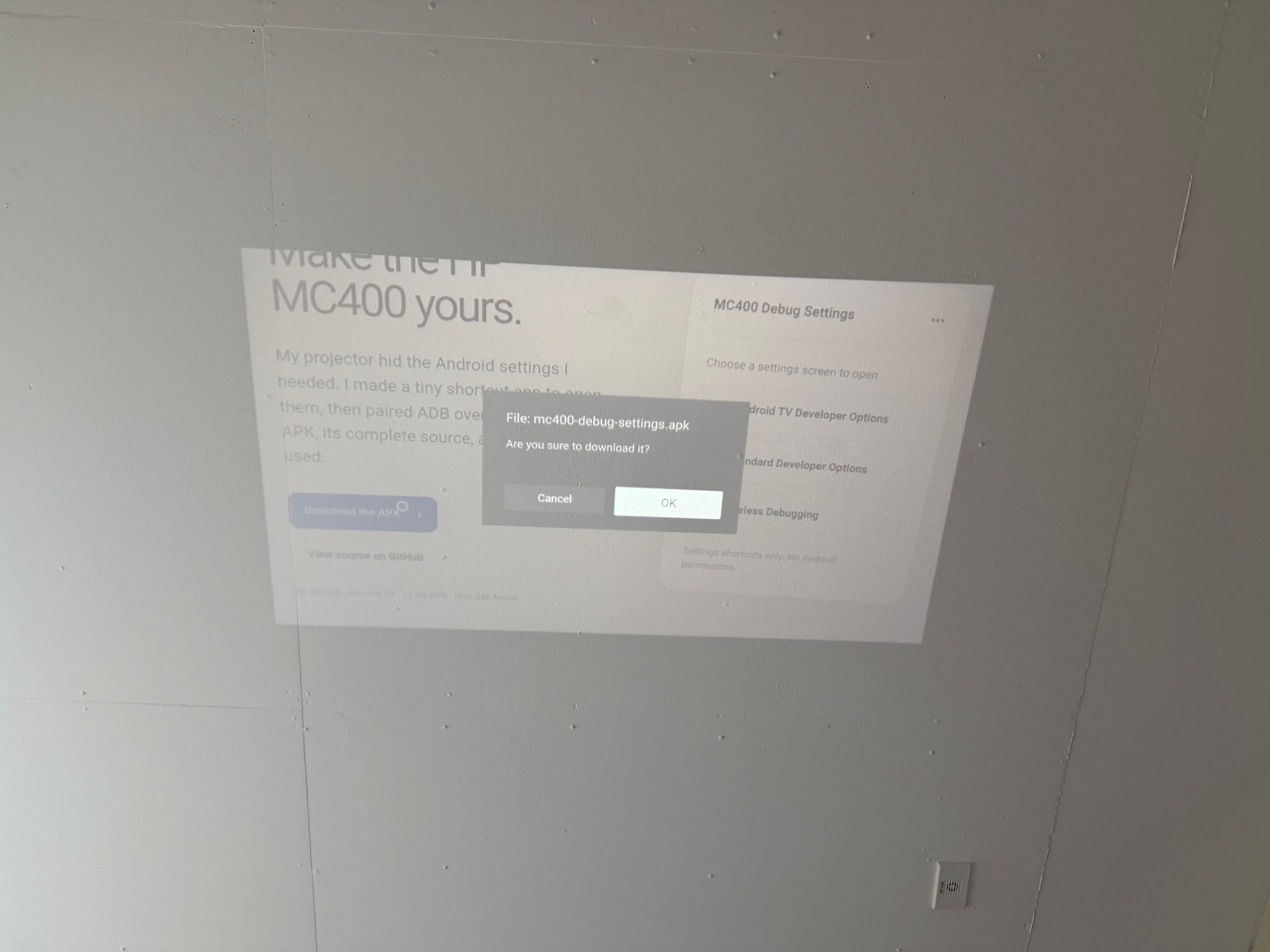
BrowseHere may ask you to confirm the APK download. - 04
Open the shortcut
Launch MC400 Debug Settings from the apps list and choose Android TV Developer Options. Developer Options should appear on the right. Enable them if prompted. The standard Developer Options button is a fallback.
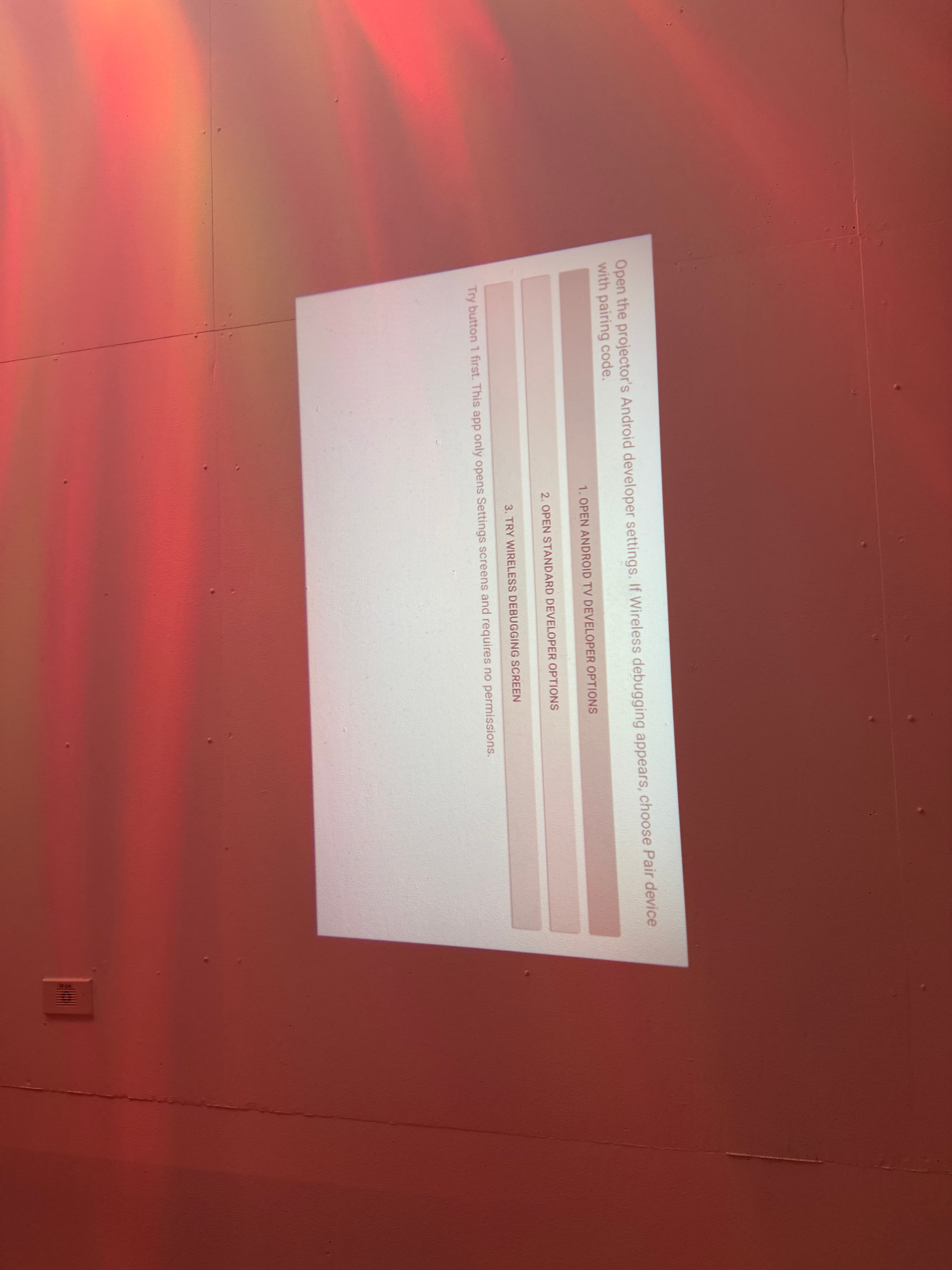
Choose the first button in the shortcut app. - 05
Turn on wireless debugging
Find Wireless debugging in Developer Options and turn it on. Choose Pair device with pairing code when you're ready to pair your computer.
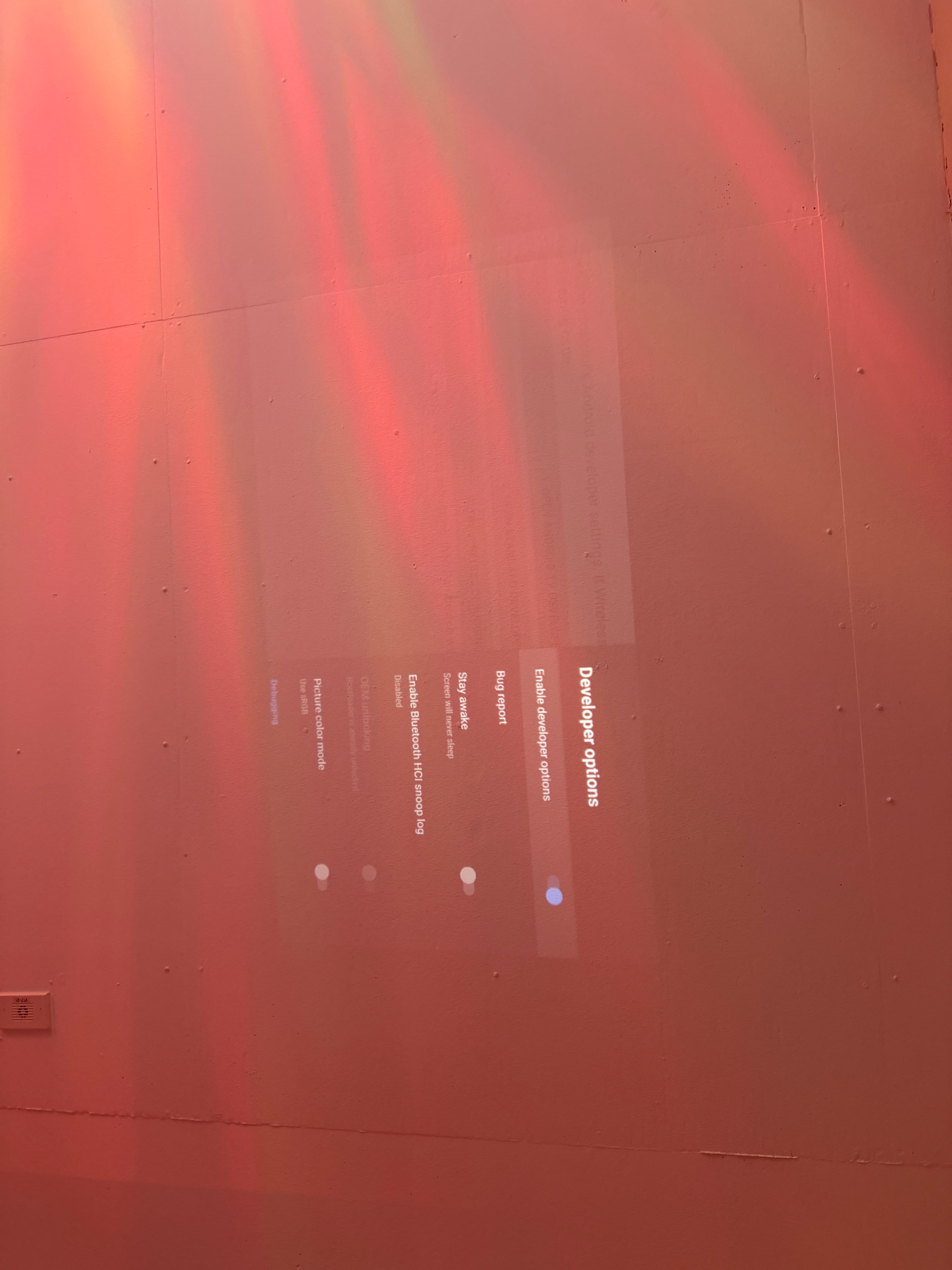
Enable Developer Options before opening Wireless debugging.
SHA-256 of the APK served here:
a15ccd291df5bc7ee52eb90085a50f5c35727019605a39701be8475c14edc0f3Build the APK yourself
It's one Java activity and a manifest. The three buttons launch Android settings intents; no permission, service, account, or network code is involved.
1. Get the tools
Install Android Studio or the Android SDK command-line tools with SDK Platform 35 and Build Tools 35.0.0. You also need a JDK with javac and keytool.
2. Read the source
MainActivity.java ↗ contains the three buttons. AndroidManifest.xml ↗ adds the TV launcher entry.
3. Clone and build
git clone https://github.com/msteele3/mc400-debug-settings.git
cd mc400-debug-settings
export ANDROID_HOME="$HOME/Library/Android/sdk" # macOS default; change if needed
./build.sh
Your signed local build appears at build/mc400-debug-settings.apk. The script generates a development signing key in the ignored build/ folder. A self-built APK has a different signature and hash than the download above; uninstall the site version before installing your own build.
Pair your computer
Install Android SDK Platform Tools so adb works in your terminal. Keep the computer and projector on the same Wi-Fi network. The pairing code is temporary; don't post it online.
The pairing popup shows a temporary IP:port and code. The main Wireless debugging screen shows the device's connection IP:port. They are usually different. Use each in the matching command.
- 01
Pair once
On the projector, select Pair device with pairing code. Replace the placeholders with the address and port on that popup, then enter its six-digit code when prompted.
adb pair <PROJECTOR_IP>:<PAIRING_PORT> - 02
Connect to the debugging port
Return to the main Wireless debugging screen and use the device address shown there. On my unit the debugging port was
5555, but use the value your projector actually shows.adb connect <PROJECTOR_IP>:<DEBUG_PORT> adb devices -l - 03
Install an APK from your computer, if needed
This is optional if you installed the shortcut in the browser. For your own build, provide the actual path to the APK. Confirm that
adb devices -lshows your projector first.adb install build/mc400-debug-settings.apk - 04
Disconnect when finished
Close the connection from your computer, then switch off Wireless debugging on the projector if you no longer need it.
adb disconnect <PROJECTOR_IP>:<DEBUG_PORT>
If pairing fails, check that both devices share a network, reopen the pairing popup for a fresh code and port, and confirm you didn't use the connection port for adb pair. Some networks block device-to-device traffic. This flow requires firmware that exposes Wireless debugging.
Install the launcher
I installed Projectivy Launcher 4.72 from its developer's release ↗. Download the APK to your computer and install it over the ADB connection:
adb install /path/to/ProjectivyLauncher.apkLaunch Projectivy and complete its setup, then select Projectivy as Android's Home app. On my MC400, the physical remote's Home button then opened Projectivy from HP Home. Keep the original HP launcher installed: its screen can still appear during boot, and it provides projector controls. Launcher behavior varies by firmware.